


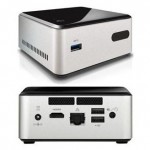
I successfully ran my VMware vSphere ESXi 5.1 Nanolab for 18 months on my pair of Intel NUC DC3217IYE hosts. Early this year I got around to upgrading to 5.5. I had experienced some issues with my vCenter Server Appliance so ended up just rebuilding the lab from scratch and reattaching my old data stores. Having written all of this up, I then promptly forgot to post it! So for the sake of continuity (before I do the same for 6.0 shortly), this article covers the process.
In addition I also purchased a 3rd node for my lab, the 4th Gen D34010WYKH model (also with a Core i3), with which I was able to test and prove the process on as it uses the same NIC chipset.
The following are updated instructions for installing vSphere 5.5 on Intel NUC (any model with the Intel® 82579V or Intel® I218V onboard NIC should work).
I recommend before you start, you upgrade the NUC to the latest firmware, to avoid any potential bugs (of which there were a few when they were first released). Copy the latest firmare image onto a USB stick, boot the NUC, hit F7 at the bios, find your firmware on the USB stick and let it do it’s thing:


Intel NUC Firmware Upgrade
vSphere 5.5 Install Requirements
- A USB Stick. This should work on anything over 1-2GB but personally am using 8GB PNY Micro Sleek Attache & 16GB Kinston DataTraveler Micro drives as they’re tiny, so less likely to catch on anything as they stick out the back of the NUC box, and they cost less than £5 each.
- A copy of VMware Workstation 8 / Fusion 6 or newer.
- ESXi-Customizer 2.7.2 (created by Andreas Peetz)
http://v-front.blogspot.com/p/esxi-customizer.html for adding VIBs to your image. NOTE: This can also be done by Powershell, but I like the GUI as it’s easy! (http://blogs.vmware.com/vsphere/2012/04/using-the-vsphere-esxi-image-builder-cli.html) - The ESXi driver for the Intel® 82579V Gigabit Ethernet Controller (e.g. for the original models using ESXi 5.5):
- OR The ESXi driver for the Intel® I218V Gigabit Ethernet Controller (e.g. for the Haswell based D34010U models):
- (AND) The ESXi AHCI driver for the SATA controller (if you want to use local drives in the Haswell based D34010U models):
- sata-xahci-1.10-1.x86_64
- If you do choose to add this in as well to your image, simply run the customiser twice, once for the network VIB, then a second time for the SATA vin, using the interim image as your source for the final image.
Process Overview
- Create a customised ISO with the additional Intel driver.
- Install ESXi to your USB stick using VMware Workstation / VMware Fusion and the customised ISO you will create below.
- Plug in your NUC, insert the USB stick, boot and go!
Part One – Create the Custom ISO
- Run the ESXi-Customizer-v2.7.2.exe (latest version at time of writing).
- This will extract the customer to the directory of your choosing.
- Navigate to the new directory.
- Run the ESXi-Customizer.cmd batch file. This will open up the GUI, where you can configure the following options:
- Path to your ESXi Installer
- Path to the Intel driver downloaded previously
- Path where you want the new ISO to be saved
- Ensure you tick the Create (U)EFI-bootable ISO checkbox.

ESXi-Customizer with 2.3.2 vib
This will output a new custom ESXi installer ISO called ESXi-5.x-Custom.iso or similar, in the path defined above.
Part Two – Install bootable ESXi to the USB stick.
I stress that this is my preferred way of doing this as an alternative is simply to burn your customised ISO to a CD/DVD and boot using a USB DVD-ROM. That would however be a whole lot slower, and waste a blank CD!
- Plug your chosen USB stick into your PC.
- Open VMware Workstation (8 or above), VMware Fusion, or whatever you use, ideally supporting the Virtualize Intel VT-x/EPT or AMD-V/RVI option (allowing you to nest 64-bit VMs).
- Create a new VM, you can use any spec you like really, as ESXi always checks on boot, but I created one with the similar specs as my intended host, single socket, 2vCPU cores. RAM doesn’t really matter either but I use at least 4GB normally. This does not require a virtual hard disk.
- Once the VM is created, and before you boot it, edit the CPU settings and tick the Virtualize Intel VT-x/EPT or AMD-V/RVI checkbox. This will reduce errors when installing ESXi (which checks to ensure it can virtualise 64-bit operating systems).

VMware Workstation Nesting

VMware Fusion Nesting
- Set the CD/DVD (IDE) configuration to Use ISO image file, and point this to the customised ISO created earlier.
- Once the above settings have been configured, power on the VM.
- As soon as the VM is powered on, in the bottom right of the screen, right click on the flash disk icon, and click Connect (Disconnect from Host).

Attach USB in VMware Workstation

Attach USB in VMware Fusion
- This will mount the USB stick inside the VM, and allow you to do a standard ESXi installation onto the stick.


ESXi Install
- At the end of the installation, disconnect the stick, un-mount and unplug it.


Install Complete
Part Three – Boot and go!
This is the easy bit, assuming you don’t have any of the HDMI issues I mentioned in the first post!
- Plug your newly installed USB stick into the back of the NUC.
- Don’t forget to plug in a network cable (duh!) and keyboard for the initial configuration. If you wish to modify any bios settings (optional), you will also ideally need a mouse as the NUC runs Visual BIOS.
- Power on the NUC…
- Have fun!
That’s it!
Any questions/comments, please feel free to hit me up on twitter as I have recently disabled comments on my blog due to the insane volumes of spam bots they were attracting!